AI image upscaler

AI Image Upscaler Free Online

Improve image quality with a free online AI image upscaler and enhancer. Upload a photo, product visual or AI image, upscale it to high resolution at 1×, 2× or 4×, and download the result at its original aspect ratio.

  • 1× enhancement
  • 2× / 4× enlargement
  • Before & after preview

Upload an image

JPG / PNG / WebP · 10MB · Up to 12 megapixels

Enhancement scale

Preview locally first. Your image is uploaded only when you sign in and process it.

Checking availability and prices…

Example preview

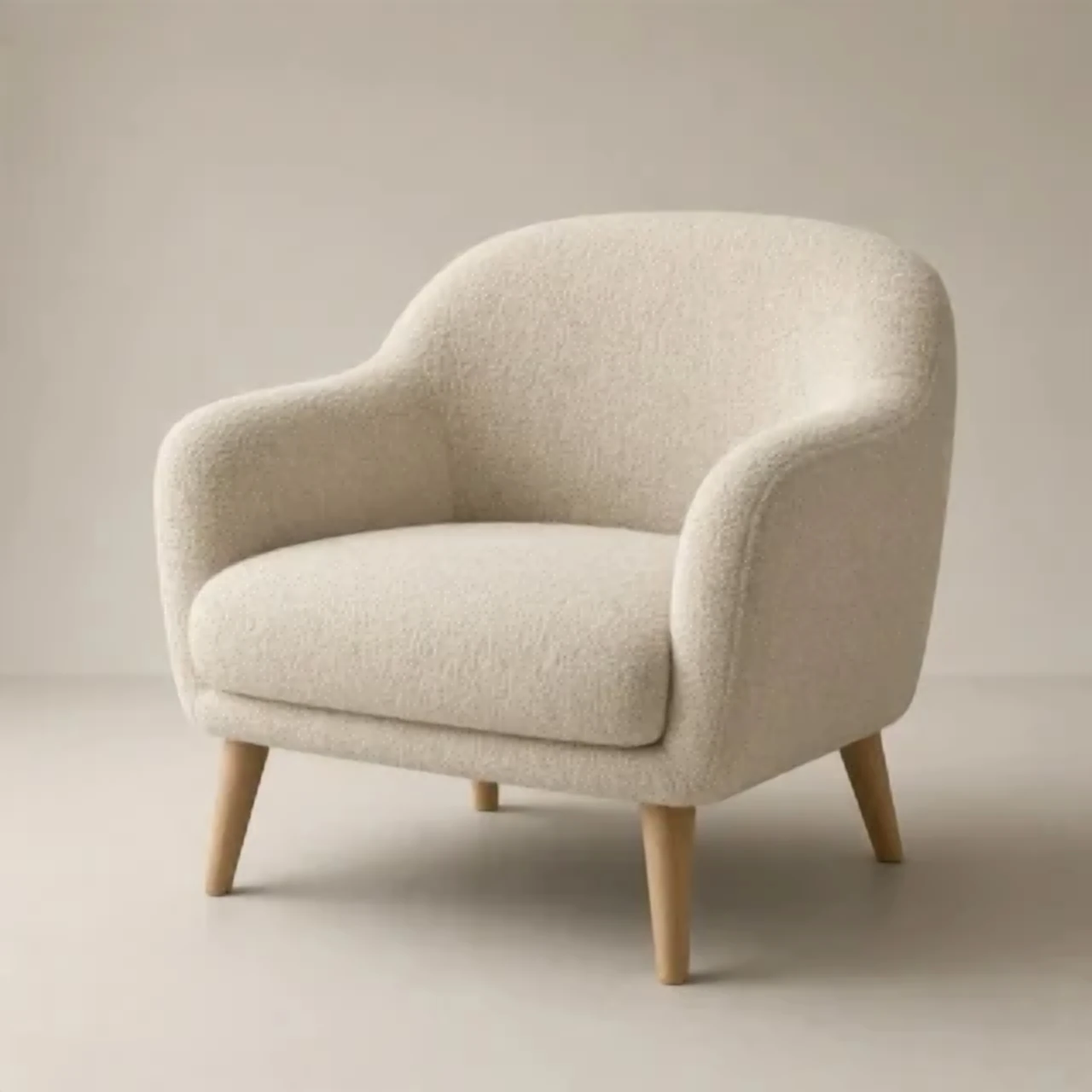
Example preview2× example

2× larger. Small original, big result.

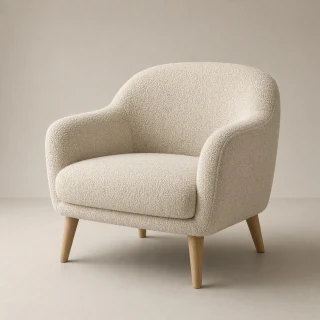
320 × 320 → 640 × 640 pixels. The small original stays in the bottom-left corner; the large image shows the 2× result. Choose an area on the original to explore.

2× image enlargement320 × 320px640 × 640px

The entire image is enlarged proportionally. Downloads include the full image.

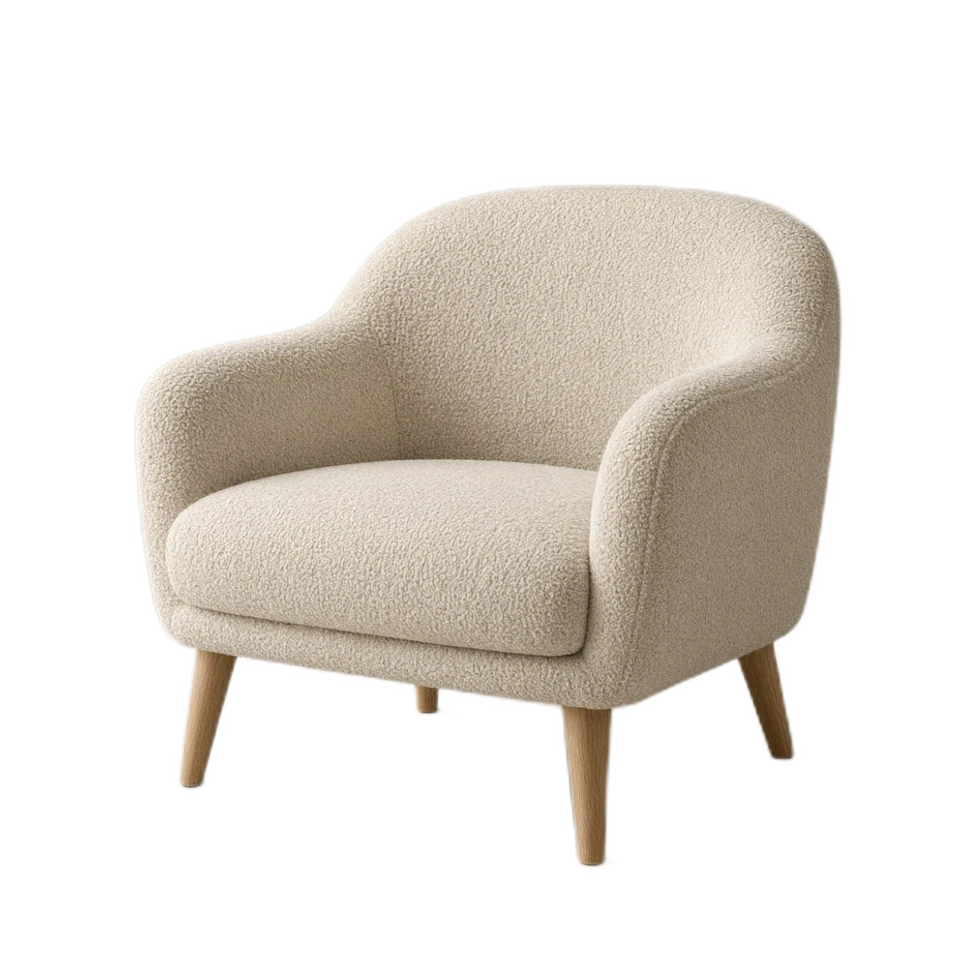
A cream bouclé armchair with wooden legs, pre-rendered result
2× enlarged result

Explore the enlarged result using the small original or by dragging the large image. Downloads include the entire image; select Full result to see the whole frame.

Before · 320 × 320pxFull result · 640 × 640px

Actual output: 2× width and height

Open full result

This is a pre-rendered example. Exploring it keeps your uploaded image in place and uses no credits.

Whole-image enlargementOriginal framing preservedOptional detail inspection

A simple creative workflow

From a small image to a bigger canvas

Choose an appropriate scale, then inspect the actual result.

  1. 01

    Upload your image

    Choose a JPG, PNG or WebP photo, product visual or AI image. The workspace reads its original dimensions.

  2. 02

    Choose your scale

    Keep the size with 1× enhancement or select 2× or 4×. Check the output dimensions and credit price before submitting.

  3. 03

    Compare and download

    Inspect edges and textures against the original, then download the image at its actual dimensions or continue creating.

Made for real creative work

Give a good image more room to work

Prepare a larger canvas for product visuals, portraits and everyday photos.

A product still-life exampleSmall image example
A product still-life example · Enlarged exampleEnlarged example
Products & brand assets

Bring product visuals to a bigger layout

When an existing product image needs to fit a detail page, campaign layout or presentation, choose a scale that suits the target dimensions.

  • Keep the original aspect ratio
  • Check labels and small lettering before download
Enhance image
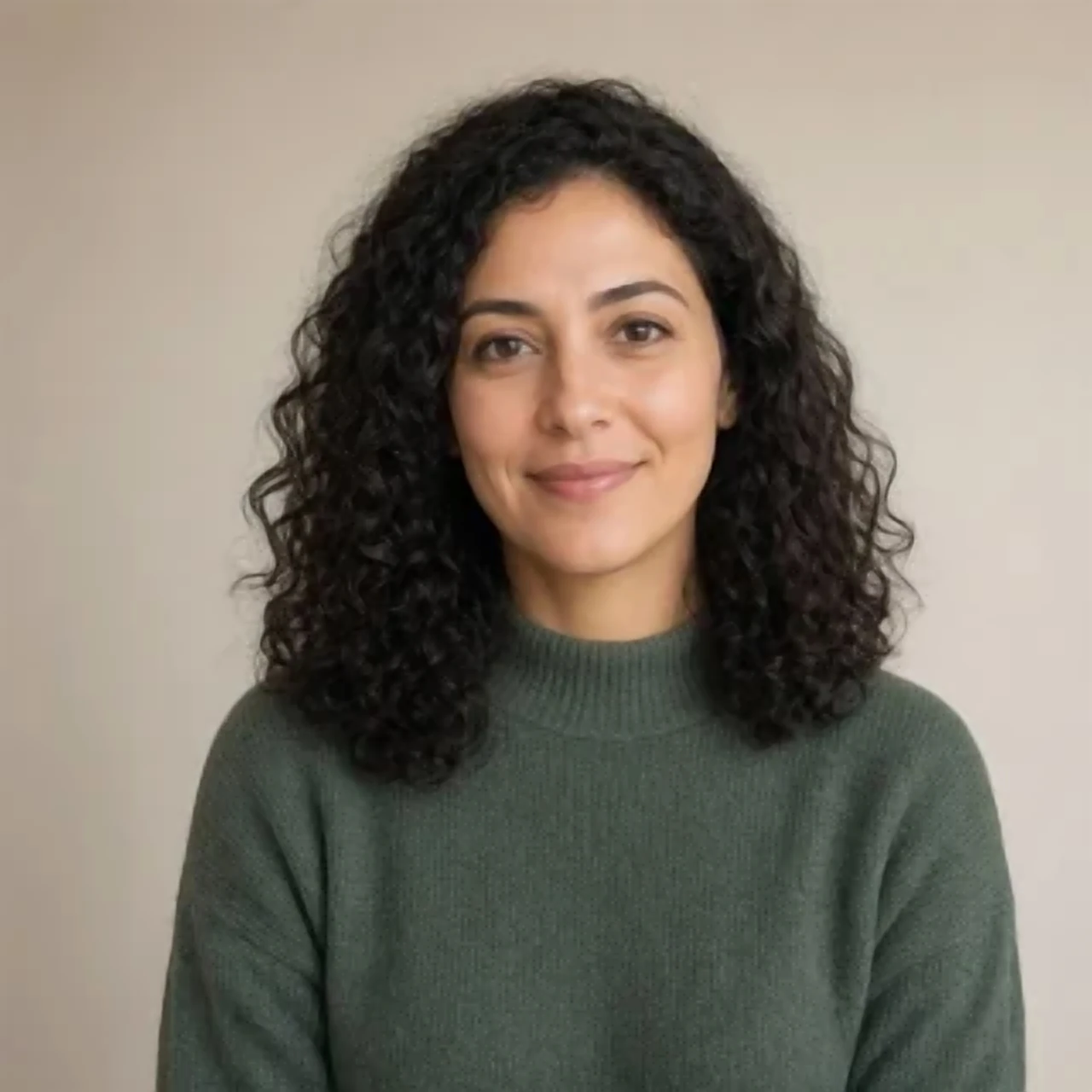
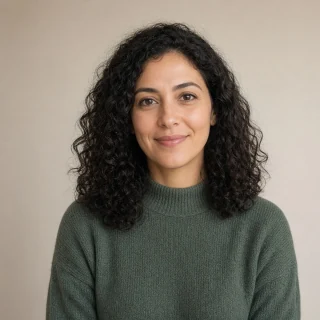
A portrait photography exampleSmall image example
A portrait photography example · Enlarged exampleEnlarged example
Portraits & content

Prepare portraits for their next destination

Prepare a small portrait for a profile, content cover or portfolio. Try enhancement at the original size, or enlarge it when the layout needs more pixels.

  • Enhance at 1× without changing dimensions
  • Review skin, hair and facial details
Enhance image
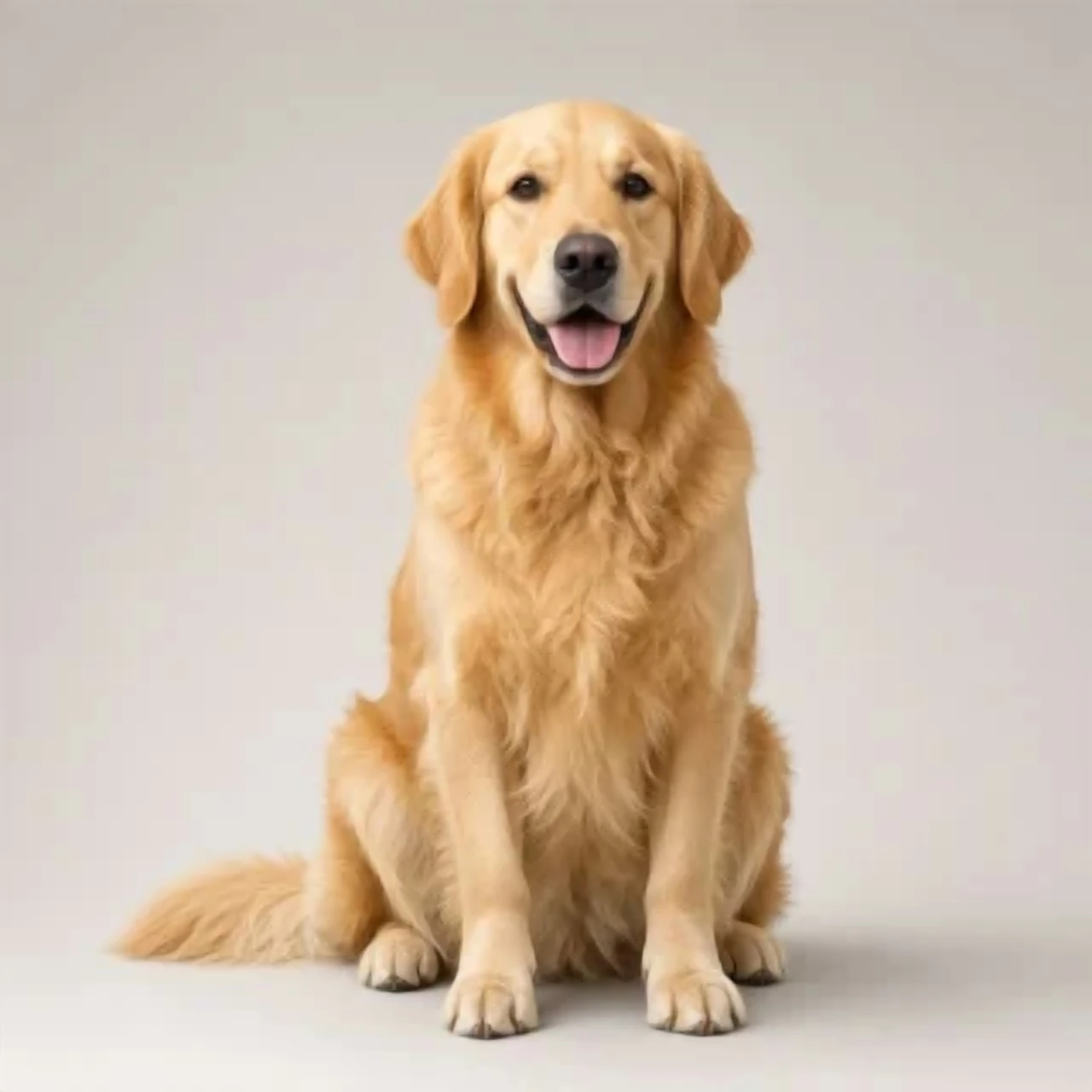
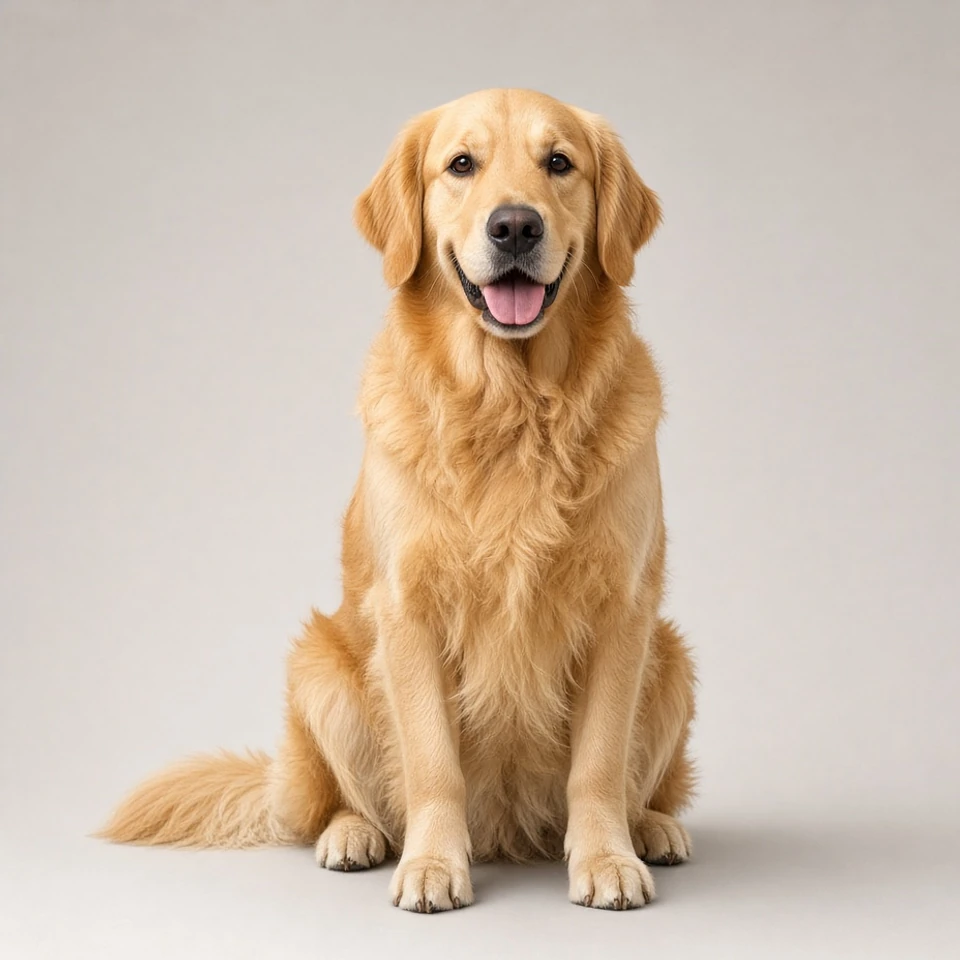
A pet photography exampleSmall image example
A pet photography example · Enlarged exampleEnlarged example
Photos & everyday moments

Give favorite photos a larger canvas

Add pixels to pet photos, travel memories and social visuals so they fit more naturally into albums, collages and new designs.

  • Choose 2× or 4× for the intended use
  • Available detail still depends on the source
Enhance image

These images illustrate use cases. Your result depends on the source image and selected options.

Input & output specifications

Input formats
JPG / PNG / WebP
Input limit
10 MB · 12 megapixels
Scale options
1× enhance · 2× / 4× enlarge
Output limit
Up to 32 megapixels

Choose the right approach

Simple resizing or AI enhancement?

Choose based on whether the image needs more pixels, detail processing, or both.

Simple resizing or AI enhancement?
ConsiderationSimple resizingMendImage image upscaler
PurposeChange image dimensionsEnhance at the original size or enlarge proportionally
Detail processingTypically adds pixels through interpolationUses an AI model to process image details
ReviewCheck output dimensionsCompare source, textures and output pixels
Best fitYou only need a different layout sizeYou want to try improving a small image for display

FAQ

Frequently asked questions

A few useful details about your files, results and next steps.

What do 1×, 2× and 4× mean?

1× enhancement keeps the original dimensions. 2× and 4× multiply both width and height. The workspace shows the output pixels and prevents requests above the processing limit.

How many credits does upscaling cost?

The current price for the available scale is shown before processing. Checking the same task costs nothing extra; a failed task is refunded.

Which image formats and sizes are supported?

Use a non-animated JPG, PNG or WebP up to 10 MB and 12 megapixels. Enlarged output is limited to 32 megapixels. The workspace disables scales that exceed the limit for your image.

Can I use the enlarged image for print?

Check the output pixels against your intended print dimensions and resolution. Enlargement increases width and height, but cannot guarantee that every detail is suitable for close viewing in print. Inspect details and arrange a proof according to your printer’s requirements.

Can it restore every blurred word or face?

No. AI processes and infers details from existing pixels, which can introduce textures that differ from the original. Review lettering, faces and precise product details before using the result.

Can I upscale AI-generated images?

Yes, provided the file meets the format and size limits. Review the details you want to keep, then select 1×, 2× or 4×. Upscaling does not correct every composition, text or structural issue.

Prepare your assets, understand a reference and take the next creative step.

Explore all tools
Automatic subject isolation

Remove Background

Remove the background from a photo online with a free AI background remover. Create a transparent PNG from portraits, product photos and other images, inspect the cutout edges, and download the result for your design.

Open tool

Make room for your next image

Upload a photo and choose the scale that fits your next project.

Upload an image to get started